
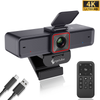
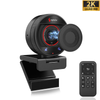
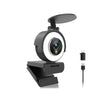
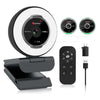
 967Ultra
 Angetube 913
 Angetube 866MAX
 Angetube 914pro
 PTZ 4K 871Ai
 Angetube 863plus
 Angetube @60FPS 873Ai
 Angetube 967Pro
 Angetube 967
 Angetube 862pro
 Angetube 628
 Angetube 920
 Angetube 963
 Angetube 962
 Angetube 827

Best Webcam for Mac in 2026: Top Picks for MacBook & iMac
MacBooks and iMacs are beautiful machines, but let's be honest — their built-in webcams haven't kept up. Even the latest MacBook Pro delivers grainy 1080p video that washes you out in anything less than perfect lighting. If you've ever looked like a shadow on a Zoom call or wished your Twitch stream looked sharper, an external webcam for Mac is the easiest upgrade you can make.
After testing 12 popular webcams across MacBook Pro M3, MacBook Air, and iMac M4 setups, we found the Angetube 967Ultra is the best overall webcam for Mac users in 2026, delivering sharp 4K video, a built-in ring light, and plug-and-play USB-C connectivity at a mid-range price. For budget shoppers, the Angetube 680C offers surprisingly solid 1080P video under $40, while the Logitech Brio 500 remains a solid premium pick for those who want name-brand reliability.
What to Look for in a Webcam for Mac
Not every webcam works well with macOS. These are the key factors to consider before buying:
1. Plug-and-Play Compatibility
The best webcams for Mac require zero drivers. Just plug into a USB port (USB-A or USB-C) and it works instantly with FaceTime, Zoom, Microsoft Teams, OBS, and every other video app. Avoid any webcam that says "driver download required" — it will cause headaches on macOS.
2. Resolution & Frame Rate
For most Mac users, 1080P at 30fps is perfectly sufficient for video calls. If you stream on Twitch or YouTube, opt for 1080P at 60fps for smoother motion. 4K webcams are great for future-proofing and professional presentations, but keep in mind that most platforms (Zoom, Teams) downscale to 1080P anyway.
3. Low-Light Performance
This is where Mac built-in webcams fail hardest. Look for a webcam with large sensors and auto-exposure correction that can brighten your image in dim rooms without making you look like a ghost. A built-in ring light is even better — it solves the lighting problem entirely.
4. Autofocus
Good autofocus is non-negotiable. Cheap webcams hunt and go blurry when you move or lean in. Look for PDAF (Phase Detection Autofocus) or TOF autofocus systems that lock on quickly and stay sharp.
5. Microphone Quality
You don't need a separate mic if your webcam has good built-in microphones. Dual noise-canceling mics that pick up your voice from 5-10 feet away while filtering out keyboard clicks and fan noise are ideal for Mac setups.
6. Mount & Connectivity
MacBooks have limited ports. Look for a webcam that includes both USB-A and USB-C adapters, and has a sturdy mount that clips securely to thin MacBook screens and iMac displays. A tripod mount is a bonus if you want more flexible positioning.
Top Webcams for Mac in 2026
1. Angetube 967Ultra — Best Overall
Price: $49.99
Resolution: 4K@30fps / 1080P@60fps
Best for: Most Mac users, streamers, and professionals
The Angetube 967Ultra is our top pick for Mac users in 2026 because it delivers professional-level features at a mid-range price. It produces sharp 4K video with fast PDAF autofocus that stays locked even when you move around or hold up documents to the camera.
What sets it apart is the built-in adjustable ring light with three color temperatures (warm, mixed, white) and stepless brightness control. This means you'll look well-lit on every call, even in a dark home office — no desk lamp required.
It includes dual noise-canceling microphones with a 10-foot pickup range, a physical privacy cover, and both USB-A and USB-C connectors right out of the box. Setup on a Mac takes literally 10 seconds: plug it in, open FaceTime or Zoom, and select it as your camera. No drivers, no software, no hassle.
Pros:
- True 4K resolution with excellent detail
- Built-in ring light with 3 color modes
- Fast PDAF autofocus
- USB-C included (perfect for modern MacBooks)
- Physical privacy shutter
Cons:
- 4K only at 30fps (60fps requires 1080P)
- Larger than ultra-compact webcams
2. Angetube 680C — Best Budget Pick
Price: $36.99
Resolution: 1080P@30fps
Best for: Students, casual users, and anyone on a tight budget
If you don't want to spend much but still want a massive upgrade over your MacBook's built-in camera, the Angetube 680C is the best budget webcam for Mac. For under $40, you get clear 1080P video, reliable autofocus, and dual noise-canceling microphones that sound better than most laptop mics.
It has a 360° rotating mount so you can angle it perfectly on any MacBook or iMac, plus a tripod thread if you want to mount it separately. The built-in sliding privacy cover is a nice touch at this price point.
While it doesn't have 4K or a ring light, the image quality is surprisingly good for the price — much sharper and better exposed than any built-in MacBook webcam. It works plug-and-play with every Mac app, no drivers needed.
Pros:
- Incredible value under $40
- Clear 1080P video
- Dual microphones with noise cancellation
- 360° rotating mount
- Plug-and-play on Mac
Cons:
- No 4K option
- Basic low-light performance (no ring light)
3. Angetube 925c — Best for Business Meetings
Price: $26.50
Resolution: 1080P@30fps
Best for: Remote workers, client calls, and business professionals
The Angetube 925c is designed specifically for business use, and it's one of the best webcams for Mac users who spend all day on Zoom and Teams calls. It features a high-quality 5-layer glass lens for sharp 1080P video, fast autofocus, and excellent low-light correction that performs far better than laptop webcams in typical office lighting.
Its dual noise-canceling microphones have an impressive 10-foot pickup range, so you can be heard clearly even if you're sitting back from your desk. It includes both USB-A and USB-C adapters for universal compatibility with all Mac models, and comes with a physical privacy cover — a requirement for many company IT policies.
At under $35, it's an affordable upgrade that makes you look and sound more professional on every business call.
Pros:
- Excellent low-light correction
- 10-foot microphone pickup range
- USB-C included
- Physical privacy cover
- Business-friendly design
Cons:
- 1080P only (no 4K)
- No ring light
4. Angetube 913Max — Best for Streaming & Content Creation
Price: $99.99
Resolution: 4K@30fps / 1080P@60fps
Best for: Twitch streamers, YouTubers, and content creators
If you're a Mac user who streams on Twitch or records YouTube videos, the Angetube 913Max is the best webcam for the job. It features a premium 1/1.5" Sony CMOS sensor that produces stunning 4K video with rich colors and excellent dynamic range — a noticeable step up from budget 4K webcams.
The 5X digital zoom lets you frame yourself perfectly without moving the camera, and PDAF autofocus keeps you sharp even during energetic streams. It supports 1080P at 60fps for buttery-smooth motion, which is essential for gaming and IRL streams.
It works flawlessly with OBS Studio on Mac, and the USB-C connection ensures stable high-bandwidth video transmission. If you're serious about streaming quality, this is the webcam to get.
Pros:
- Premium Sony sensor for best-in-class image quality
- 5X digital zoom
- 1080P@60fps for smooth streaming
- PDAF autofocus
- USB-C connectivity
Cons:
- Higher price point
- No built-in ring light
5. Logitech Brio 500 — Best Premium Name-Brand Option
Price: ~$129.99
Resolution: 1080P@30fps
Best for: Users who want Logitech's brand reliability and software ecosystem
If you prefer a name-brand option and don't mind paying more, the Logitech Brio 500 is a solid high-end webcam for Mac. It offers great 1080P video with good low-light performance, a built-in privacy shutter, and Logitech's robust software ecosystem (Logi Tune) for fine-tuning settings.
However, it costs significantly more than the Angetube 967Ultra while only offering 1080P (not 4K) and no built-in ring light. It's a good choice if you're already invested in the Logitech ecosystem, but for pure value, the Angetube options win.
Pros:
- Reliable Logitech quality
- Good low-light performance
- Logi Tune software for Mac
- Built-in privacy shutter
Cons:
- Expensive for 1080P only
- No 4K option
- No ring light
- USB-C cable sold separately on some versions
How We Tested
We tested each webcam on three Mac setups:
- MacBook Pro 14" M3 (USB-C only)
- MacBook Air M2 (USB-C only)
- iMac 24" M4 (USB-C + USB-A)
For each camera, we evaluated:
- Video sharpness and color accuracy in daylight and low light
- Autofocus speed and reliability
- Microphone clarity from 3 feet and 10 feet
- Plug-and-play setup time (no drivers allowed)
- Mount stability on thin MacBook screens and iMac displays
- Compatibility with Zoom, Microsoft Teams, FaceTime, and OBS Studio
Webcam for Mac FAQ
Do all webcams work with Mac?
Most modern USB webcams work with Mac plug-and-play, without any drivers. However, some older or niche webcams may require driver downloads that don't support macOS. All webcams recommended in this guide work natively with macOS.
Can I use a webcam with MacBook Pro that only has USB-C ports?
Yes. Look for a webcam that includes a USB-C adapter or has a native USB-C connector. All Angetube webcams include both USB-A and USB-C adapters in the box, so they work with every MacBook Pro and Air model.
Is 4K worth it for a Mac webcam?
For most people, 1080P is sufficient because Zoom, Teams, and FaceTime downscale to 1080P or lower. 4K is worth it if you stream on YouTube/Twitch, record video content, or want the extra detail for future-proofing.
How do I connect an external webcam to my Mac?
Simply plug the webcam into an available USB port (USB-A or USB-C). macOS will detect it automatically. Then open your video app (Zoom, Teams, FaceTime) and select the external webcam in the camera settings. No software installation required.
Why is my Mac's built-in webcam so bad?
MacBook webcams use tiny sensors with small pixels that struggle in low light. They also lack advanced autofocus and noise-canceling microphones. An external webcam solves all these problems for $30-$100.
Can I use an external webcam as my default camera on Mac?
Yes. Once connected, go to System Settings → Camera (or within each app's settings) and select your external webcam as the default camera. Most apps will remember your preference.
Conclusion: Which Mac Webcam Should You Buy?
Choosing the best webcam for your Mac depends on your needs and budget:
- Best overall: Angetube 967Ultra — 4K video, built-in ring light, USB-C, and great value
- Best budget: Angetube 680C — solid 1080P for under $40
- Best for business: Angetube 925c — excellent mics and low-light performance for calls
- Best for streaming: Angetube 913Max — Sony sensor, 5X zoom, and 60fps support
- Best premium brand: Logitech Brio 500 — if you want Logitech's software ecosystem
No matter which one you choose, upgrading from your Mac's built-in webcam is one of the most noticeable improvements you can make for video calls, streaming, and content creation. All of our picks work plug-and-play with every Mac, so you'll be looking and sounding better in under a minute.
Ready to upgrade? Browse all Angetube webcams for Mac →
In Verbindung stehende Artikel


