
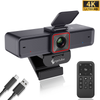
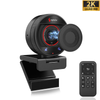
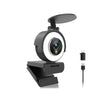
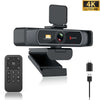
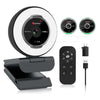

 967Ultra
 Angetube 913
 Angetube 866MAX
 Angetube 914pro
 PTZ 4K 871Ai
 Angetube 863plus
 Angetube @60FPS 873Ai
 Angetube 967Pro
 Angetube 967
 Angetube 862pro
 Angetube 628
 Angetube 920
 Angetube 963
 Angetube 962
 Angetube 827
 862Pro
 863PLUS
 913AI
913AI
Why Does My Webcam Look Bad on Zoom? 7 Fixes to Try Before Buying a New Webcam
Oct 15, 2026

Have you ever joined a Zoom meeting and noticed that your face looks blurry, your skin looks washed out, or your video seems much worse than expected?
You're not alone.
Even if you have a decent webcam, your video may look soft, dark, grainy, or less detailed than you'd like. And before you start shopping for a replacement, there's something worth knowing: your webcam isn't always the problem.
Zoom settings, lighting, internet bandwidth, camera placement, and computer performance can all affect the video other people see.
The good news? You can often improve your Zoom video quality with a few simple adjustments.
Here are seven things to check before buying a new webcam.
1. Check Whether Your Webcam Looks Better Outside Zoom
Start with a simple test.
Open your computer's built-in Camera app on Windows or Photo Booth on a compatible Mac, then compare the video preview with what you see in Zoom.
Look for differences in sharpness, brightness, color, and smoothness.
If your video looks clear in the camera app but blurry in Zoom, the problem may involve Zoom's settings, processing, or connection quality rather than the webcam itself.
If the image looks poor in both applications, check your lighting, lens, focus, and camera settings first.
This quick comparison helps you narrow down the cause instead of changing everything at once.
2. Check Your Zoom Video Settings
Your webcam may support high-quality video, but that doesn't automatically mean Zoom will transmit video at the highest resolution.
Open Zoom and navigate to Settings → Video & effects → Camera. The exact interface may vary by app version.
Check that Zoom is using the correct camera. If you're using an external webcam, make sure it hasn't defaulted to your laptop's built-in camera.
Next, look for the HD video setting and enable it if it's available for your account and device.
There is one important limitation: Zoom's available video quality depends on account eligibility, meeting settings, device capabilities, and bandwidth. Standard HD and Full HD also have different requirements. Enabling HD does not guarantee that every meeting will transmit at 1080p.
Zoom explains these requirements in its official guide to enabling HD video for meetings.
Tip: Check your actual Zoom video preview after changing a setting. Don't assume that a higher-resolution camera automatically produces a higher-resolution meeting.
3. Improve Your Lighting Before Upgrading Your Camera
Lighting is one of the easiest things to overlook when troubleshooting a webcam.
Imagine two people using the same camera. One sits facing a window with soft daylight illuminating their face. The other sits with a bright window behind them and a dark face in the foreground.
The first person will usually look much clearer and better exposed, even though both use the same camera.
Here are three easy lighting adjustments:
Face your main light source. Position a window or lamp in front of you rather than directly behind you.
Avoid relying on overhead lighting alone. Ceiling lights can create dark shadows under your eyes and nose.
Use soft, consistent lighting. A light placed near your monitor can illuminate your face more evenly during calls.
If your room is dim, a webcam with built-in adjustable lighting can simplify your setup. Instead of positioning a separate lamp, you can adjust the light directly around your camera.
Zoom also offers a low-light adjustment feature in supported versions of its app. You can find it under the camera settings in the Video & effects section. See Zoom's guide to enhancing your video.
However, software adjustments cannot create the same results as having enough light in the first place.
4. Position Your Webcam at Eye Level
A good camera position makes your video look more natural and professional.
If your webcam sits too low, other participants may see more of your chin and the underside of your face. If it's too high, the perspective can feel unnatural.
For most video meetings, try placing the lens close to eye level.
Then adjust your distance from the camera so your head and shoulders fit comfortably in the frame.
A few other details matter:
-
Keep the camera steady rather than placing it somewhere that vibrates when you type.
-
Avoid sitting so far away that your face becomes a small part of the frame.
-
Leave some space above your head, but don't leave excessive empty space.
-
Keep your background reasonably tidy so it doesn't distract from your face.
You don't need expensive equipment to improve your composition. A small change in webcam height can make a noticeable difference to how you appear on screen.
5. Make Sure Your Autofocus Is Working Properly
Does your image sometimes look sharp and then suddenly become blurry?
Or does your webcam struggle to focus when you move closer to the screen or hold something up during a presentation?
The issue may involve autofocus.
Autofocus helps a webcam adjust focus when the distance between the subject and camera changes. If the focus is slow, inconsistent, or unable to lock onto your face, the resulting video may look soft.
Try these steps:
-
Clean the lens gently with a suitable microfiber cloth.
-
Sit at a comfortable, consistent distance from the camera.
-
Make sure your face is sufficiently illuminated.
-
Avoid placing objects directly in front of your face unless you're demonstrating something.
-
Check whether the focus improves when you remain still.
A well-lit scene can help the camera produce a more stable image, although focus performance also depends on the webcam's hardware and design.
If autofocus problems are a recurring issue, read our related guide to PDAF autofocus and sharper webcam video to learn more about how webcam focusing works.
6. Test Zoom's Virtual Backgrounds and Video Effects
Virtual backgrounds, portrait effects, and other video enhancements can be convenient. However, some effects require additional processing and may affect the video your device can deliver.
Zoom notes that using a virtual background without a green screen can limit video resolution to 720p, or potentially 360p on some lower-end Windows computers.
That means a video that looks softer after enabling a virtual background may not be caused by the webcam itself.
Try this test:
-
Join a test meeting or open your Zoom video preview.
-
Turn off your virtual background.
-
Disable unnecessary video effects.
-
Compare the image with your previous settings.
If your image becomes clearer, you can decide whether the effect is worth keeping.
You don't necessarily need to stop using virtual backgrounds altogether. The key is understanding how your particular computer handles them.
For important meetings, a real, tidy background can be a useful alternative to software effects.
7. Check Your Internet Connection and Computer Performance
A webcam captures video, but Zoom also needs to process and transmit that video over your internet connection.
When bandwidth is limited or your connection is unstable, the meeting experience may suffer even when the original camera image looks good.
Zoom's published recommendations for sending 1080p video include approximately 3.8 Mbps of upload bandwidth, subject to its other eligibility and configuration requirements. Actual needs can vary with the meeting setup and other activity on your network.
Try the following:
-
Move closer to your Wi-Fi router or use a reliable wired connection.
-
Pause large downloads and uploads during important meetings.
-
Close unnecessary applications that consume significant CPU or network resources.
-
Update Zoom and restart the app if video quality suddenly changes.
-
Test your connection at the time you normally experience problems.
You can review Zoom's official bandwidth requirements for more details.
Remember that a better webcam cannot fix an unstable internet connection. It's worth checking the complete video-call setup before deciding to replace your camera.
When Should You Consider Buying a New Webcam?
After trying the seven fixes above, you may find that your current webcam is perfectly adequate.
But if its image remains soft, it struggles in your room's lighting, or it cannot focus reliably, a hardware upgrade may make sense.
When choosing a webcam for Zoom and other video calls, consider more than resolution alone.
Resolution: 1080p can provide clear video for everyday meetings, provided the application and connection support it.
Frame rate: Higher frame rates can make motion appear smoother in compatible applications and configurations.
Autofocus: Useful when you move around during a call or occasionally bring objects closer to the camera.
Lighting: A built-in adjustable light can help you maintain more consistent illumination without adding another piece of equipment to your desk.
Microphone quality: Clear audio is just as important as a sharp image during meetings.
A webcam that combines these features can make your everyday setup easier to manage.
A Webcam Upgrade to Consider: Angetube 862Pro
If you want to improve your video-call setup without assembling several separate accessories, the Angetube 862Pro is worth considering.
The 862Pro combines everyday video and lighting features in one webcam:
-
1080p at up to 60 FPS for clear video and smoother motion in compatible applications.
-
Autofocus to help keep your subject in focus.
-
Built-in adjustable ring light with three color temperatures and stepless brightness adjustment.
-
Dual stereo noise-reduction microphones for everyday voice communication.
-
Built-in privacy shutter to physically cover the camera lens when you're not using it.
-
Remote control for convenient operation.
The integrated light can be particularly useful if you frequently attend meetings in a home office with inconsistent lighting. Autofocus helps keep your image sharp, while the built-in privacy shutter provides a simple way to cover the lens after a call.
One thing to keep in mind: buying a 1080p/60 FPS webcam does not guarantee that Zoom will transmit every meeting at 1080p or 60 FPS. Zoom's settings, account eligibility, bandwidth, and device performance still matter.
Explore the Angetube 862Pro Webcam →
Before upgrading, try the free adjustments first. If your current camera is the limiting factor, then compare webcams based on the features that address your specific problems.
Final Thoughts
If your webcam looks bad on Zoom, don't assume that buying a new camera is the only solution.
Start with the basics: test the camera outside Zoom, check the HD settings, improve your lighting, adjust the camera position, verify autofocus, test your video effects, and check your internet connection.
These small adjustments can help you identify what's actually causing the problem.
And if your webcam is still holding your video quality back, look for a model that combines dependable autofocus, useful lighting, and clear video rather than focusing on resolution alone.
The goal isn't simply to own a better webcam. It's to look clearer, brighter, and more confident every time you join a call.
Frequently Asked Questions
Why does my webcam look blurry on Zoom but clear in other apps?
If your camera looks clear in another app, the issue may involve Zoom's camera selection, video settings, processing, or network conditions. Compare the previews and check whether HD video is available for your account.
How do I make my Zoom camera look better?
Start by facing a light source, positioning the camera at eye level, checking the HD setting, and turning off virtual backgrounds or unnecessary effects temporarily. Then test your internet connection.
Does Zoom support 1080p webcam video?
Zoom supports HD video, but 1080p availability depends on account eligibility, settings, device requirements, and bandwidth. A webcam capable of 1080p does not guarantee 1080p transmission in every meeting.
Will a better webcam automatically improve my Zoom video?
Not always. A better webcam may improve the original image, particularly if your current camera has weak autofocus or poor low-light performance. However, Zoom settings, lighting, bandwidth, and computer performance also affect the result.
Is a 60 FPS webcam better for Zoom meetings?
A 60 FPS webcam can capture smoother motion, but the benefit depends on whether the application, account settings, and meeting configuration support that frame rate. For typical meetings, lighting, focus, and stable video delivery remain important.

